
Static Site Checker
Broad page, crawl, content-depth, publisher-readiness, schema, AdSense, robots, sitemap, and ads.txt checks.
WRS Publisher Tools is a free tools division of WRS Web Solutions Inc. It helps small publishers review common static-site, crawlability, content-depth, metadata, link, sitemap, and publisher-readiness signals in plain English.
Tool library
The site is not a magic SEO score machine. It provides focused checks and practical reminders for people maintaining simple websites, static HTML pages, cPanel-hosted projects, and advertising-supported educational content.
Broad page, crawl, content-depth, publisher-readiness, schema, AdSense, robots, sitemap, and ads.txt checks.
Check one public page for broken, redirected, blocked, and skipped links.
Review sitemap discovery, sitemap indexes, URL status, redirects, canonical/noindex samples, duplicate URLs, mixed hosts, visible index.html paths, and lastmod quality.
Check whether robots.txt and ads.txt are reachable and look reasonable for a small publisher site.
Review redirect chains, final URL, HTTPS, www/non-www consistency, index.html cleanup, and canonical tags.
Draft or check title tags and meta descriptions with a simple snippet-style preview.
Interactive checklist for launching or reviewing a small publisher site.
Generate page-type-specific review checklists for homepages, articles, tools, indexes, and trust pages.
Detect JSON-LD blocks and common schema types without pretending to replace a full rich-results validator.
Create simple responsive HTML tables for educational comparison pages.
Generate starter Apache .htaccess blocks for common static-site canonical and hygiene rules, with strong caution notes.
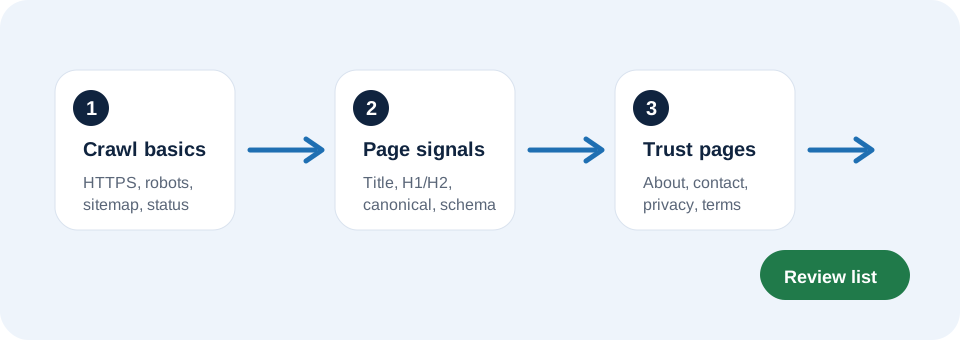
Readiness flow
A stronger publisher page usually has more than a working URL. It needs crawlable files, clear page signals, visible ownership, sound internal links, and enough original content to stand on its own.
Start here
Understand the basic pages, files, links, and technical pieces a small publisher site should have.
Learn why short, link-heavy, or boilerplate-heavy pages can be weaker for search and advertising review.
A practical checklist for homepages, articles, guide indexes, legal pages, and tool pages.
Learn how to prioritize internal 404s, redirects, external warnings, and sitemap-related link issues.